Engineering Project Controls: Moving Microsoft Works Schedules to Excel and CSV
For engineering, construction, and project-controls teams with deep archives.
TL;DR
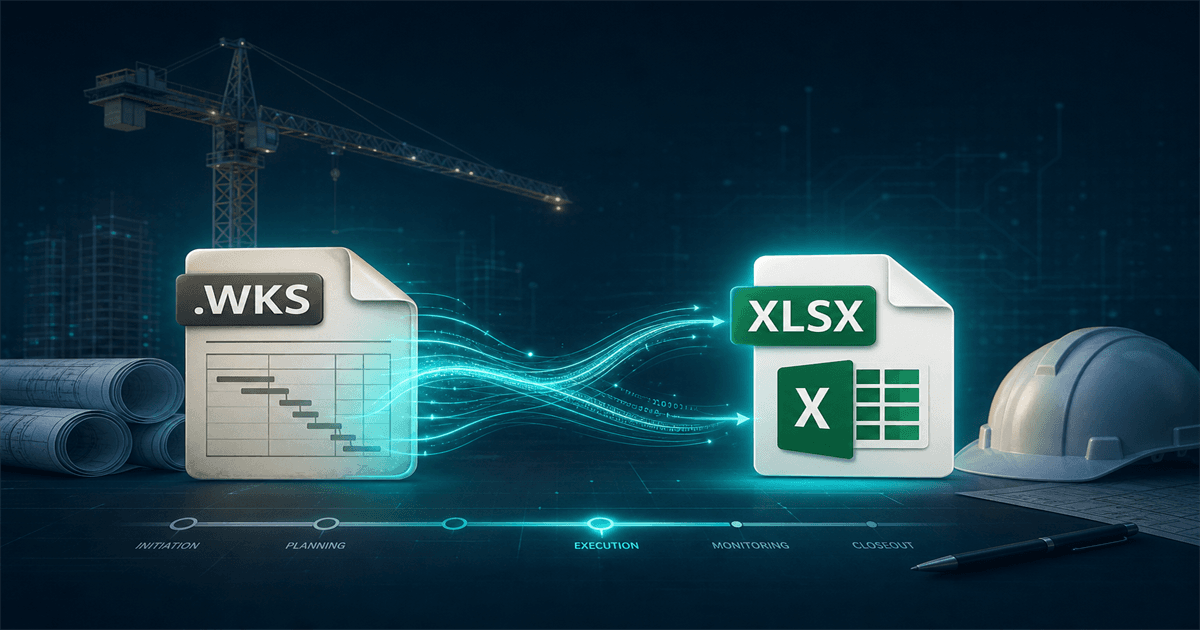
Engineering project archives still contain cost estimates, schedule snapshots, earned-value reports, and change-order logs in Microsoft Works formats. Converting them locally to XLSX and CSV makes the records searchable, auditable, and easy to merge into modern project-management systems—without exposing sensitive client or contract data to a free online tool.
Project history is often spreadsheet history
Cost estimates, baseline schedules, earned-value reports, and change-order logs from EPC and infrastructure projects can sit in Microsoft Works files for decades. They survive because they were the official record at the time and because someone signed off on a number using them.
Modern project-controls platforms cannot read those files directly. Until they are converted, the archive is effectively dark.
Why this matters now
Older project records become important during disputes, warranty claims, lessons-learned reviews, and pre-bid analysis. The teams that can pull a 2003 schedule, recalculate an old estimate, or check a change-order trend across decades have a real edge.
Online conversion is rarely acceptable for client-confidential project records, especially in defense, infrastructure, and large industrial work.
Convert in the order that matches your workflow
1. Estimates and budgets to XLSX
Estimates and budgets benefit most from XLSX because the formulas and named ranges are the model. Project-controls analysts can then re-link them to current unit-cost libraries.
2. Schedule snapshots to CSV and PDF
Convert schedule extracts to CSV for ingestion into modern scheduling tools, and to PDF for the official "what the schedule looked like at this milestone" record.
3. Change-order and claims logs to XLSX and CSV
Change-order and claims logs are usually tabular. XLSX gives reviewers the working copy; CSV makes them searchable across the project archive.
Batch first, review second
Large project archives are best converted in batches—per project, per phase, or per fiscal year. That gives the team a consistent output naming convention and avoids one-off manual conversion that introduces inconsistencies.
After the batch, sample a few files per project to verify totals, formulas, and date conventions before committing the archive to the project-records system.
Get project history out of binary captivity
Modernize the engineering archive once, log it, and stop fighting File Explorer when the next dispute or pre-bid review starts. Past projects become a real research tool instead of a folder nobody opens.
Related reading
Recover project records trapped in Microsoft Works formats
Trial Microsoft Works File Converter on a sample project folder and produce XLSX, CSV, and PDF outputs ready for your project-records system.
Free trial
Full app features - up to 10 files
Windows 10 or 11
Download the offline installer below for the full 10-file trial. Conversion stays on your PC.